Lean Angle app icon: a motorcycle leaning into a corner in front of a speedometer scale
Lean Angle for iPhone

Lean angle.
To the degree.

Lean Angle turns your iPhone into a cockpit for your motorcycle — lean angle, speed, g-force and GPS position, live and in real time.

Coming soon to the App Store Learn more
Lean Angle dashboard: lean arc at 0° and speedometer at 0 km/h
At a glance

Seven readings. One second.

Everything is placed and colour-coded so you can take it in at a glance — on the bars, on the tank, or afterwards at your leisure.

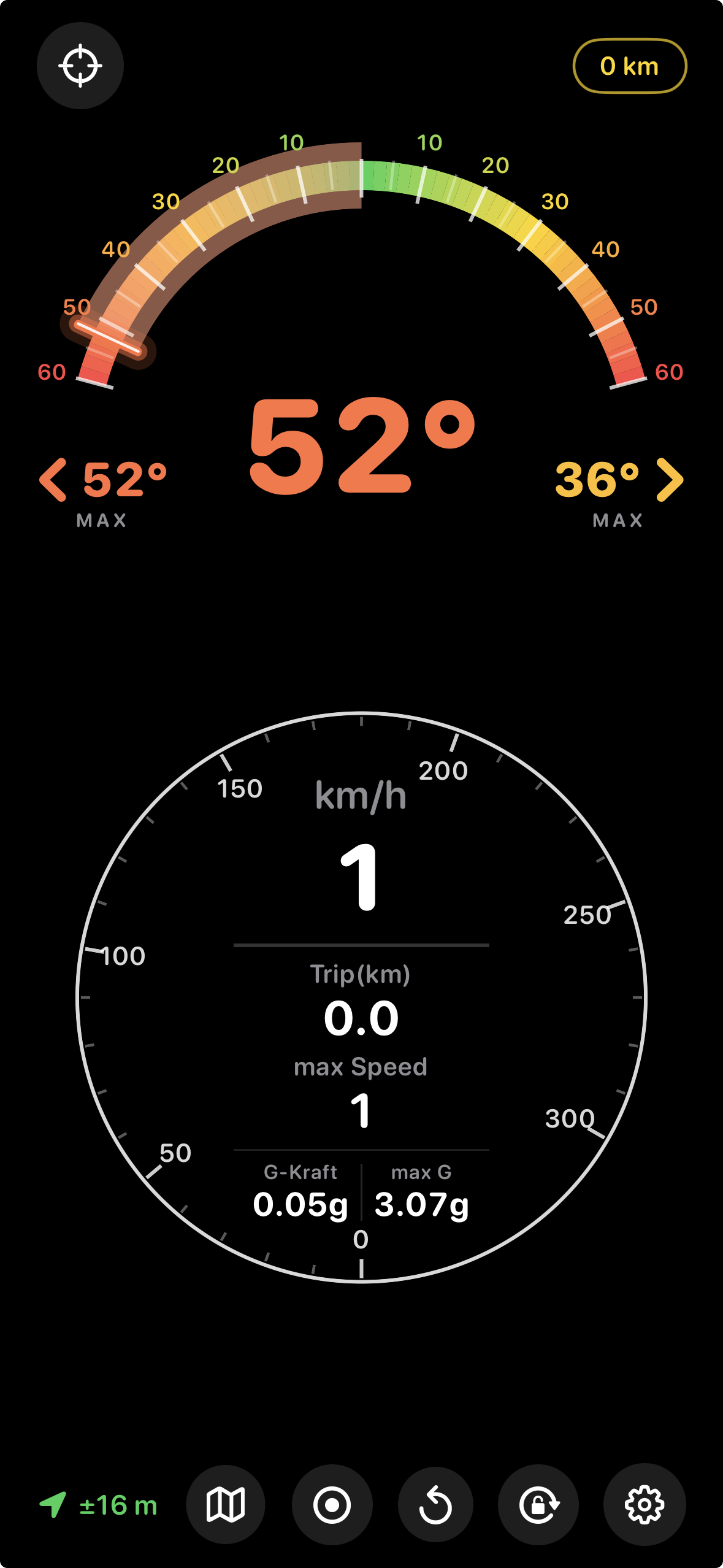
Lean angle

A colour-graded arc — green through yellow to red — shows lean up to 60° either way, live from the motion sensors.

GPS speedometer

A full dial reading beyond 300 km/h, calculated from GPS — works on any motorcycle, with no ECU pairing at all.

Session bests

After every corner Lean Angle holds the angle you reached for up to 10 seconds, before it feeds into the session record for left and right — until you reset.

G-force

Current g-force sits right inside the speedometer — together with the session high, smoothed and accurate to two decimals.

Distance

A running trip odometer below the speedometer, cleared with a single tap before you set off.

Accuracy

A live reading in metres turns green, yellow or red depending on how precise the GPS fix is — so you know how much to trust speed and distance.

Orientation

The cockpit rotates with the phone — upright on the bars, sideways on the tank. A tap on the lock freezes the current orientation.

Two layouts

Upright. Or sideways.

The same live data rearranges itself the moment you turn the phone — and stays put once you lock the orientation.

Lean Angle in portrait: lean arc on top, speedometer below
Portrait
Lean arc on top, speedometer below.
Lean Angle in landscape: lean arc in the centre, speedometer alongside
Landscape
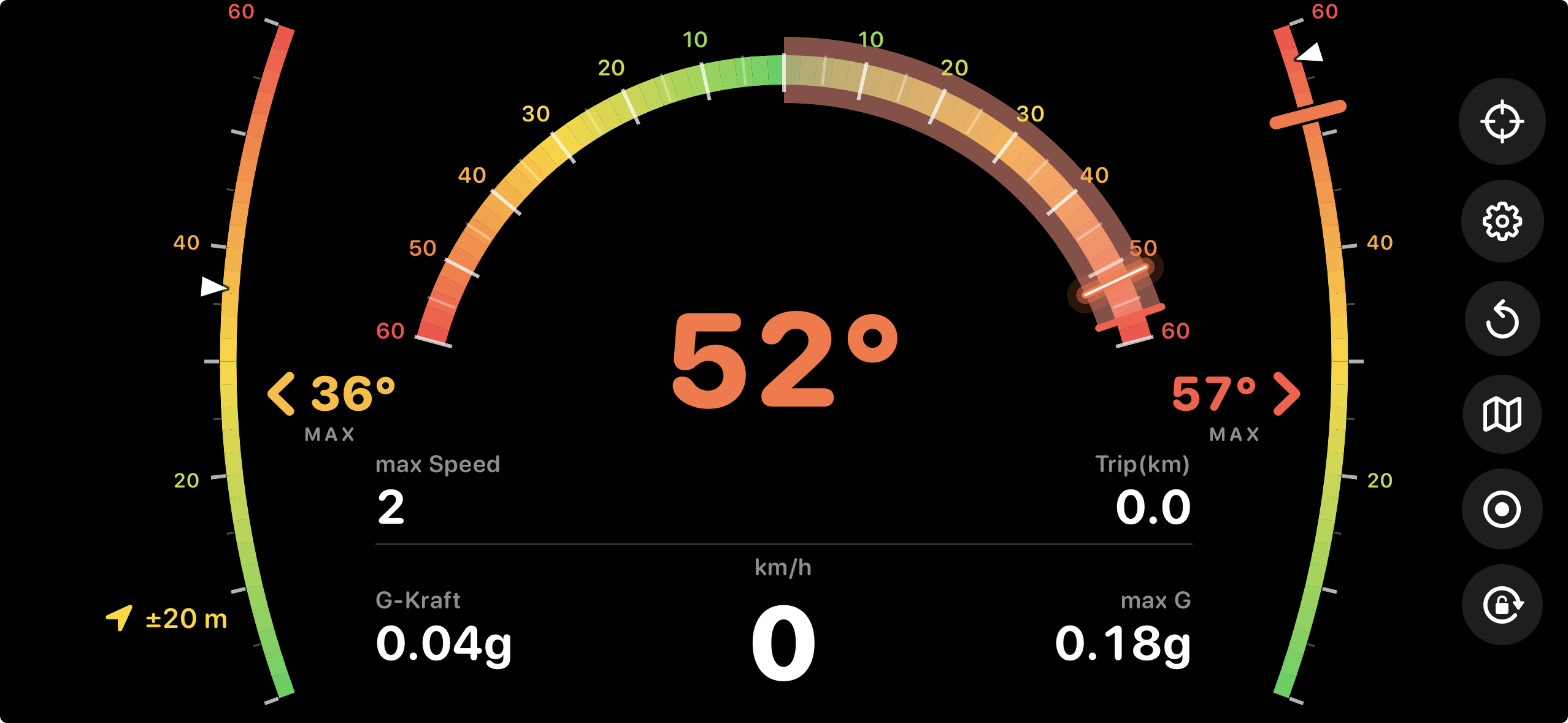
Current lean in the centre, a bright bar marks the peak of the last corner, session bests for both sides on the outside.

Mount the iPhone on the bike and turn it the way you want it — the cockpit follows on its own. Then tap the lock so nothing flips while you ride, and tap the crosshair to set the current tilt as zero. Now you are ready to go.

After the ride

Every ride becomes a map.

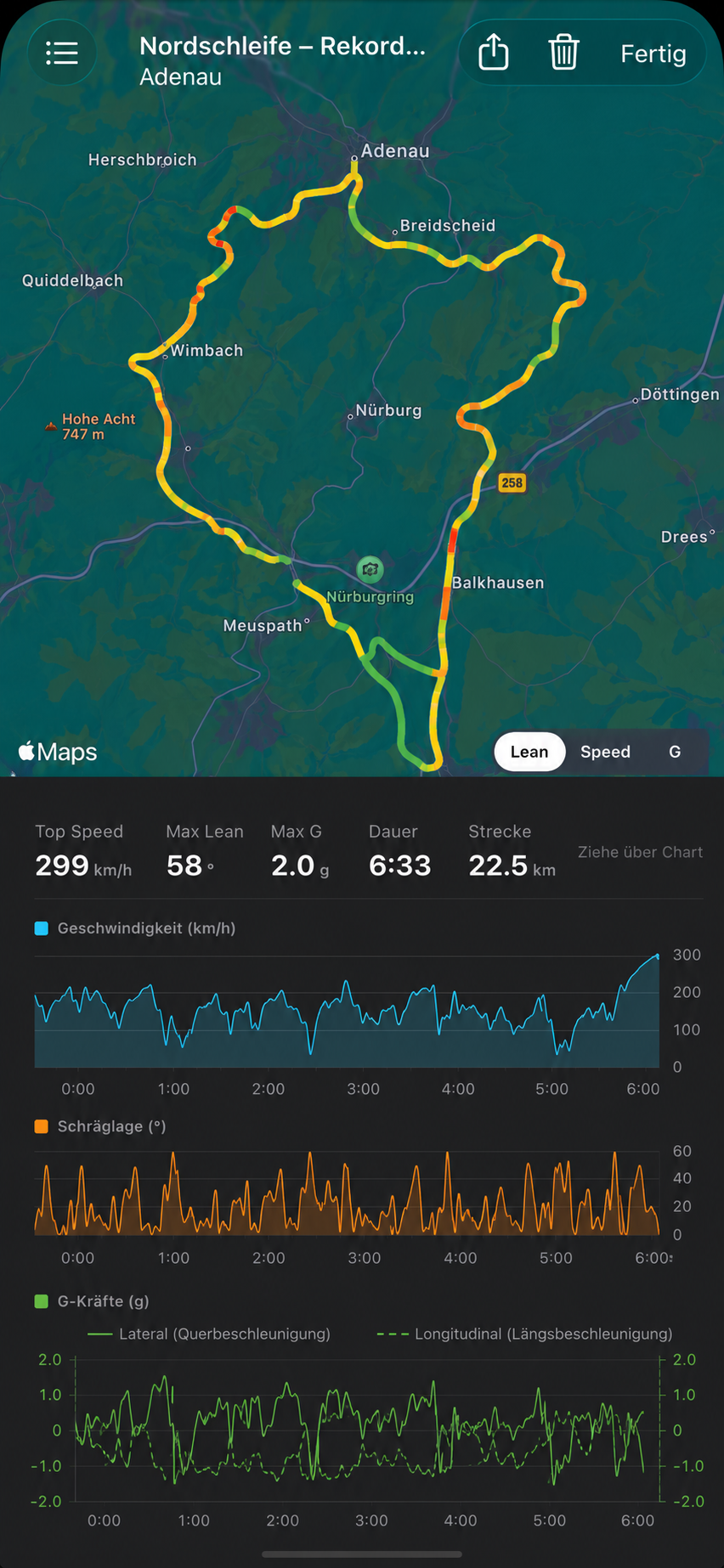
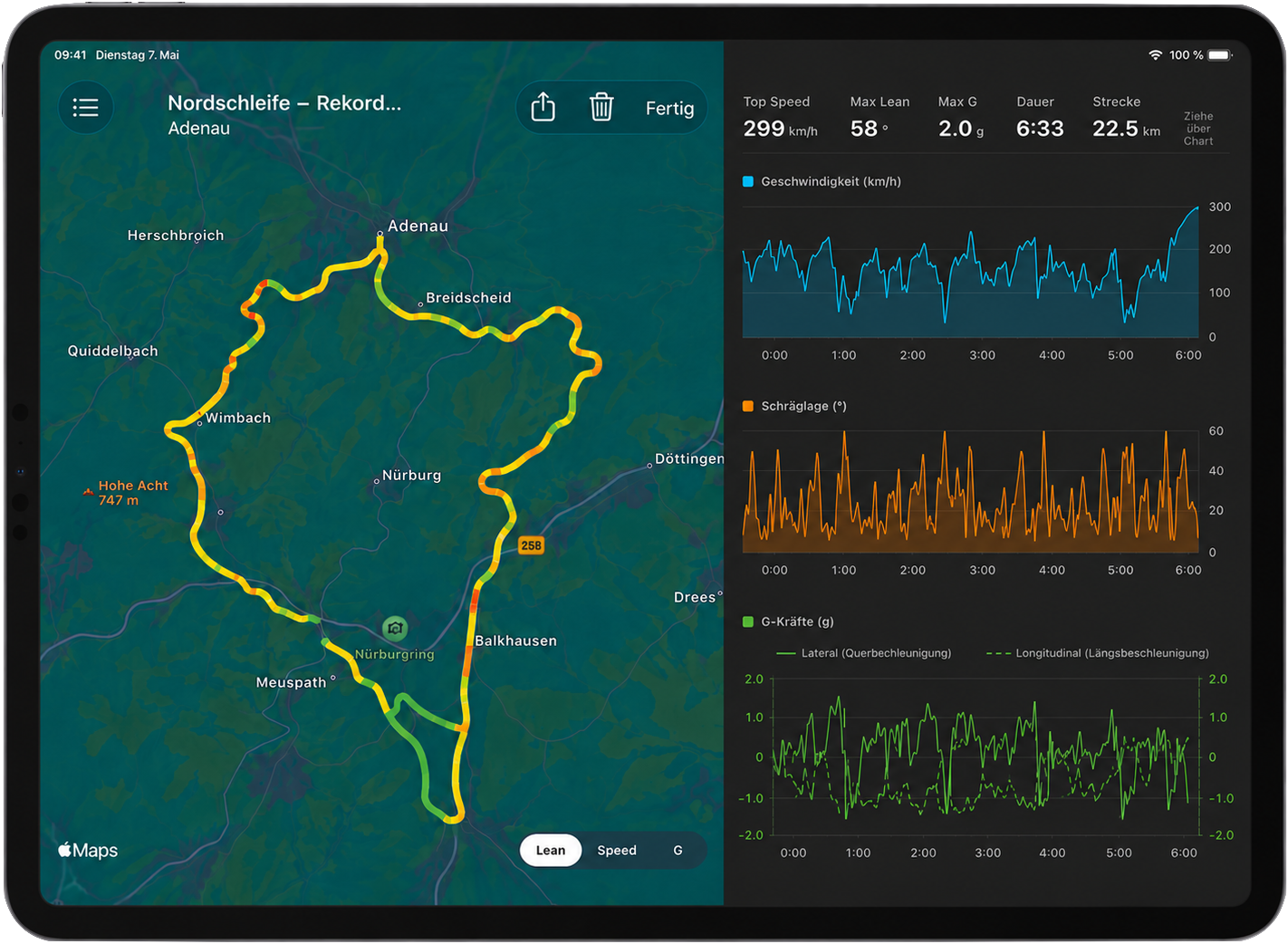
Record your route and Lean Angle draws it onto Apple Maps, coloured by lean angle, speed or g-force. Swipe to scrub through the whole ride and read every value at any moment.

Route in colour

Your route appears on Apple Maps as a line in green, yellow and red. A tap on the map switches what it is coloured by: lean angle, speed or g-force.

Swipe through the ride

Charts for speed, lean angle and g-forces over time. Drag your finger across them to scrub through the ride — every value and the marker on the map follow along. The divider to the map can be dragged.

GPX export & history

Every ride can be shared as a GPX file — with speed, lean angle and all g-values per sample — or revisited and deleted in the trip list at any time.

iCloud Sync

If you want, your rides live in your private iCloud and are ready on every device signed in with the same Apple ID. Each ride is also filed as a GPX in iCloud Drive, visible in the Files app.

Recorded route on Apple Maps, coloured by lean angle, with synchronised speed and lean charts below
Route & history
The route in green, yellow and red — coloured by lean angle, speed or g-force, whichever you choose. Swipe across the charts to scrub through the ride: speed, lean angle, lateral and longitudinal acceleration and the position on the map all jump to the selected moment.
List of all saved rides with duration, distance, top speed and maximum lean
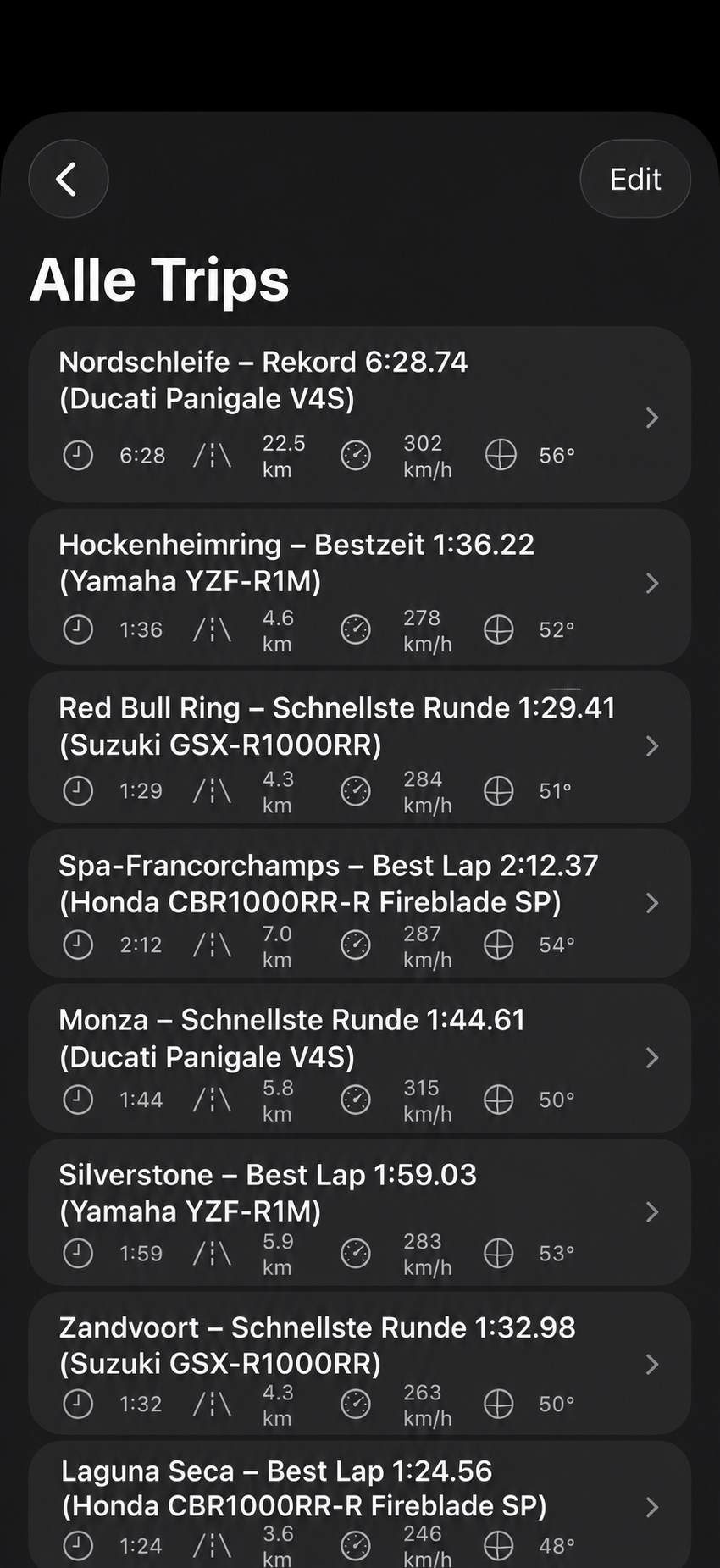
All rides at a glance
Duration, distance, top speed and maximum lean at a glance — tap to open the map and history.
Lean Angle settings with the iCloud Sync switch and the version and build display
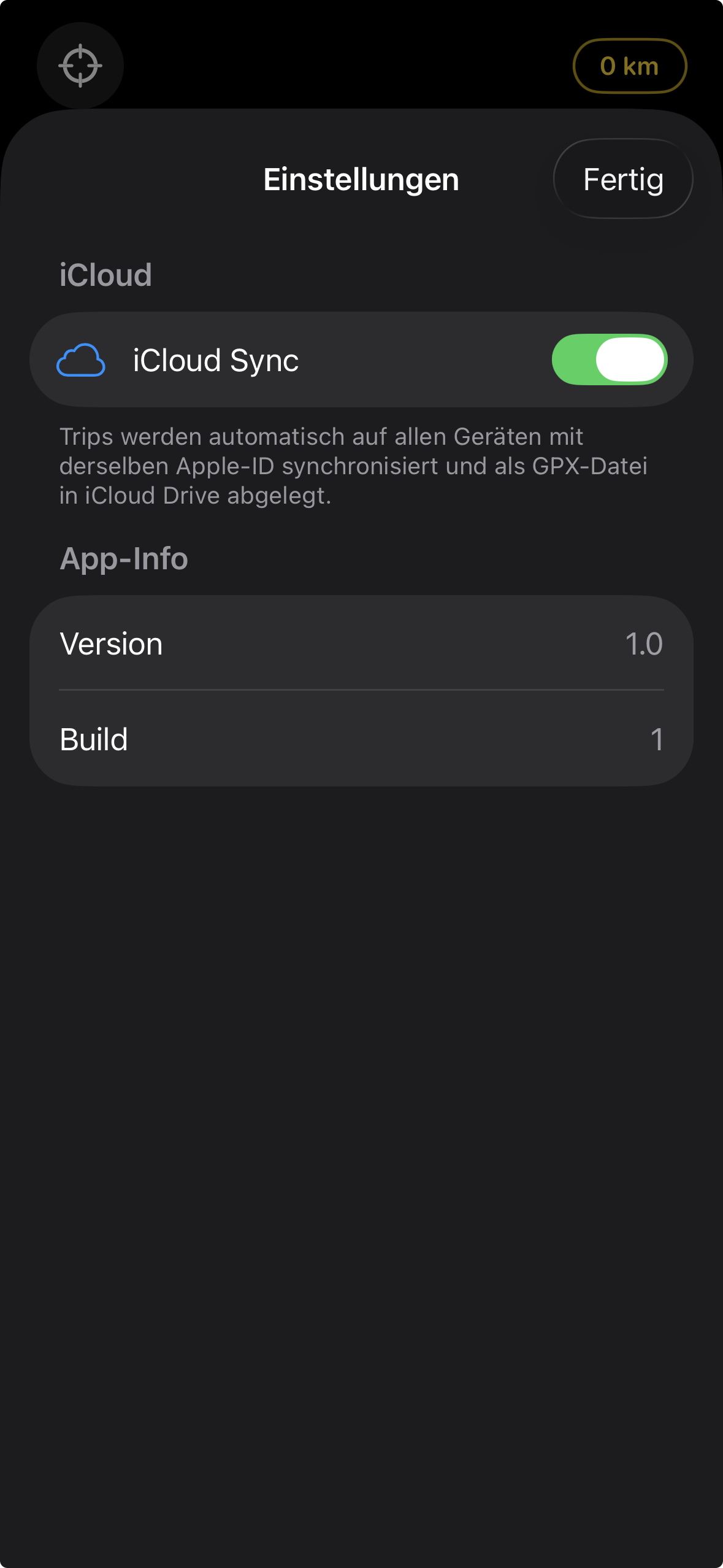
iCloud Sync
Switch it on once and your rides are available on every device with the same Apple ID. The change takes effect the next time the app starts.

Your rides stay yours: they live on your iPhone and, if you like, in your private iCloud — never on anyone else’s servers and never with third parties.

On iPad too

Ridden on the bike.
Reviewed on the iPad.

Lean Angle is a universal app: download once, use on both devices. On iPad it does not open the cockpit — it opens straight into your rides.

Lean Angle on iPad in landscape: the route on Apple Maps on the left, coloured by lean angle, the charts for speed, lean angle and g-forces on the right
In landscape the map and the history sit side by side — the divider between them can be moved, and the navigation bar hides itself so the analysis gets the whole screen.

Straight to the list

No detour through the cockpit: on iPad the app opens with the list of all your rides — duration, distance, top speed and maximum lean.

Map and history side by side

Held sideways, the route sits on the left and the charts on the right — both in view at once. The divider moves freely, from 20 to 80 percent map.

Connected through iCloud

With iCloud Sync on, every ride from your iPhone arrives on the iPad by itself. Get off the bike, put the phone away — the analysis is already waiting.

Recording still happens on the iPhone alone: it sits on the bars, measures lean and speed and knows where you are. The iPad is the desk afterwards.

Details

Tech Specs

Lean angle
0–60°, both sides
Speed
GPS-based, dial up to 300 km/h
Accuracy
Live ± m GPS readout, colour-coded green/yellow/red
Distance
Trip odometer, resettable at any time
Orientation
Rotates automatically, portrait and landscape, lockable
G-force
Live readout in the speedometer, with a session high
Trips
Recording with map view, history for speed, lean angle and lateral/longitudinal acceleration, GPX export
iCloud Sync
Optional, off by default; syncs rides through your private iCloud
Data
On the device; GPX files also in iCloud Drive, and with Sync the rides themselves
iPad
Universal app; on iPad for reviewing rides, without recording
Compatibility
iPhone and iPad, iOS or iPadOS 26.2 or later
Release Log

What’s in version 1.0.

The first release of Lean Angle brings the complete cockpit, ride recording and export.

Version 1.0
Initial release
iOS 26.2 or later

Lean angle

  • Colour-graded arc from 0° to 60° per side, green through yellow to red.
  • Current angle large in the centre, always in the colour of the lean.
  • Corner detection with hysteresis: a corner starts at 8°, ends below 5°.
  • The peak of the last corner stays on screen briefly before it fades.
  • Session bests for left and right across the whole ride.
  • Calibration via the crosshair — the current tilt becomes the new zero.
  • Smoothed display via a low-pass filter against sensor noise.

Speed & distance

  • Round GPS speedometer with a dial up to 300 km/h.
  • Top speed and trip distance right inside the speedometer.
  • Distance only accumulates while GPS accuracy is good enough.
  • GPS readout in metres, colour-coded green, yellow or red.
  • Current g-force and session high in the speedometer, smoothed as well.
  • Reset clears trip and session bests with one tap.

Trips

  • Records position, speed, lean angle and lateral/longitudinal acceleration once per second.
  • Route on Apple Maps — coloured by lean angle, speed or g-force, switchable right on the map.
  • Charts for speed, lean angle and g-forces — swipe to scrub through the ride, the map follows.
  • The g-force chart plots lateral and longitudinal acceleration as two curves around a zero line: solid for cornering, dashed for throttle and brake.
  • While scrubbing, the lateral and longitudinal values for the selected moment appear in the header.
  • In portrait the map and charts stack; in landscape they sit side by side — and the navigation bar hides itself.
  • The divider between map and charts can be dragged: more map or more history, whichever you prefer.
  • Per-ride figures: top speed, maximum lean, duration and distance.
  • Trip list with every ride, individually deletable.
  • Optional iCloud Sync: switch it on in Settings and every ride is available on any device with the same Apple ID. Off by default; the change takes effect at the next app start.
  • Every recorded ride is also filed as a GPX in iCloud Drive — in the “Lean Angle” folder, visible in the Files app.
  • GPX export with every value per point: speed, lean angle and lateral, longitudinal and total g-force.
  • If the app goes to the background, the recording is closed cleanly and saved.

Handling

  • The cockpit rotates automatically between portrait and landscape.
  • A lock button freezes the current orientation and glows yellow while it is fixed.
  • After every rotation the lean angle recalibrates; session bests and trip distance start fresh.
  • The display does not jump when the orientation changes — the zero point is carried over.
  • The screen stays on while you ride.
  • Permanently dark design with no status bar, so nothing distracts from the cockpit.
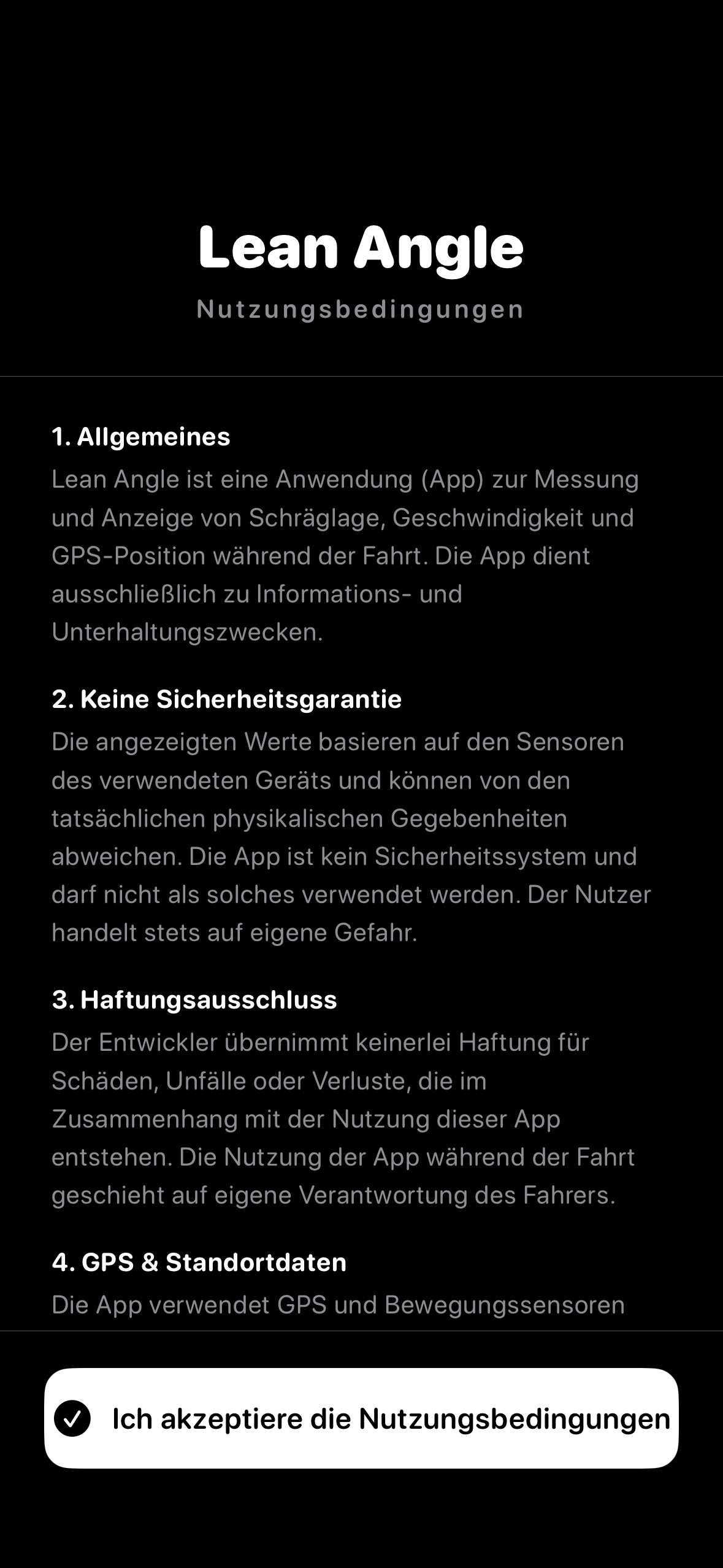
  • Terms of use on first launch.
  • Settings via the gear in the cockpit — with the iCloud Sync switch plus version and build number.
  • Rides are stored on the device; with iCloud Sync on, in your private iCloud as well.

iPad

  • Universal app: one download for iPhone and iPad.
  • On iPad the list of all rides opens directly — no cockpit, no recording.
  • Map, history charts, GPX export and delete are all available there just as on iPhone.
  • Rides reach the iPad through iCloud Sync.
  • All orientations supported, dark design throughout.

Lean Angle is in final testing before release. Future versions will be listed here.

In progress

Centimetres, not metres.

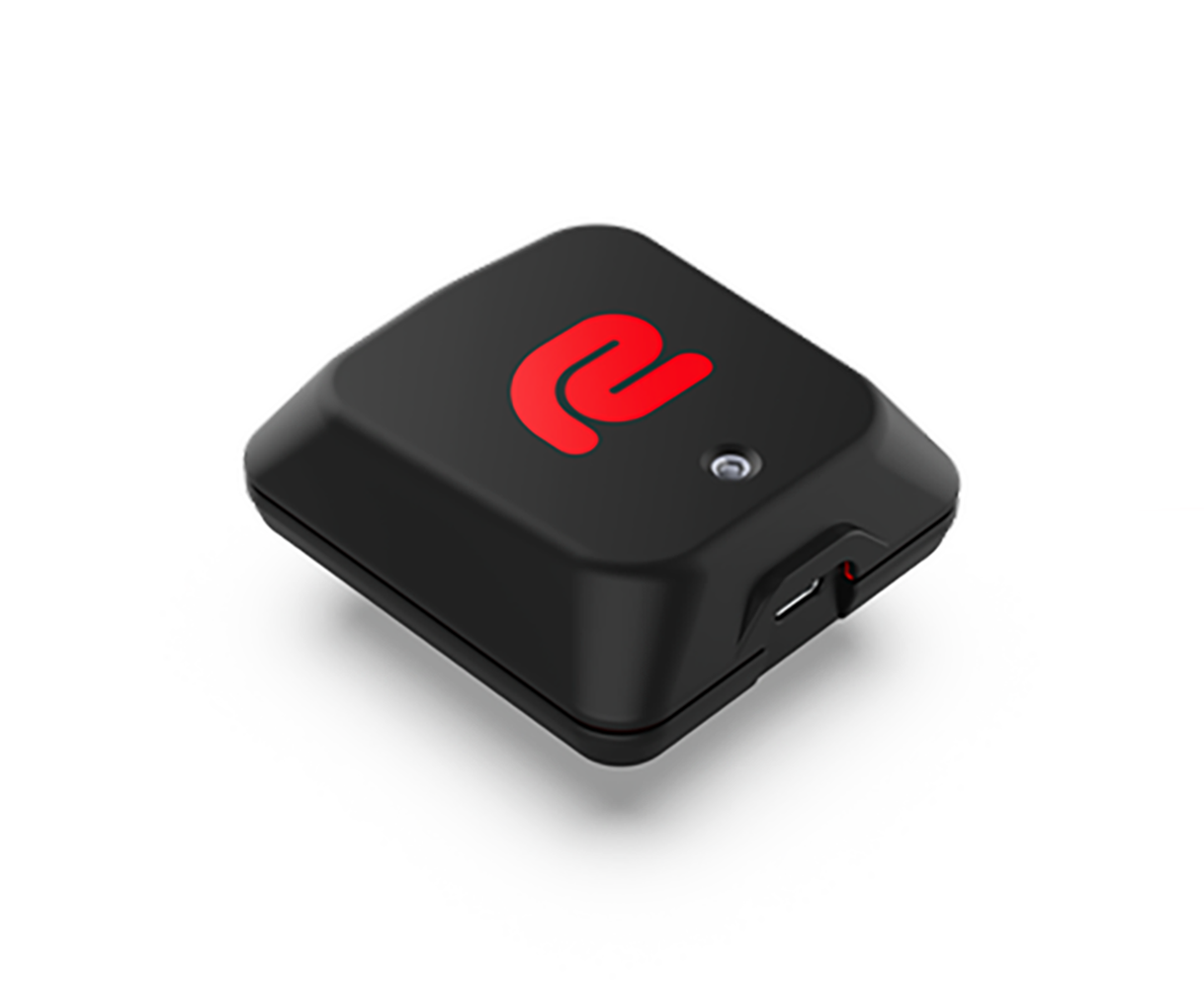
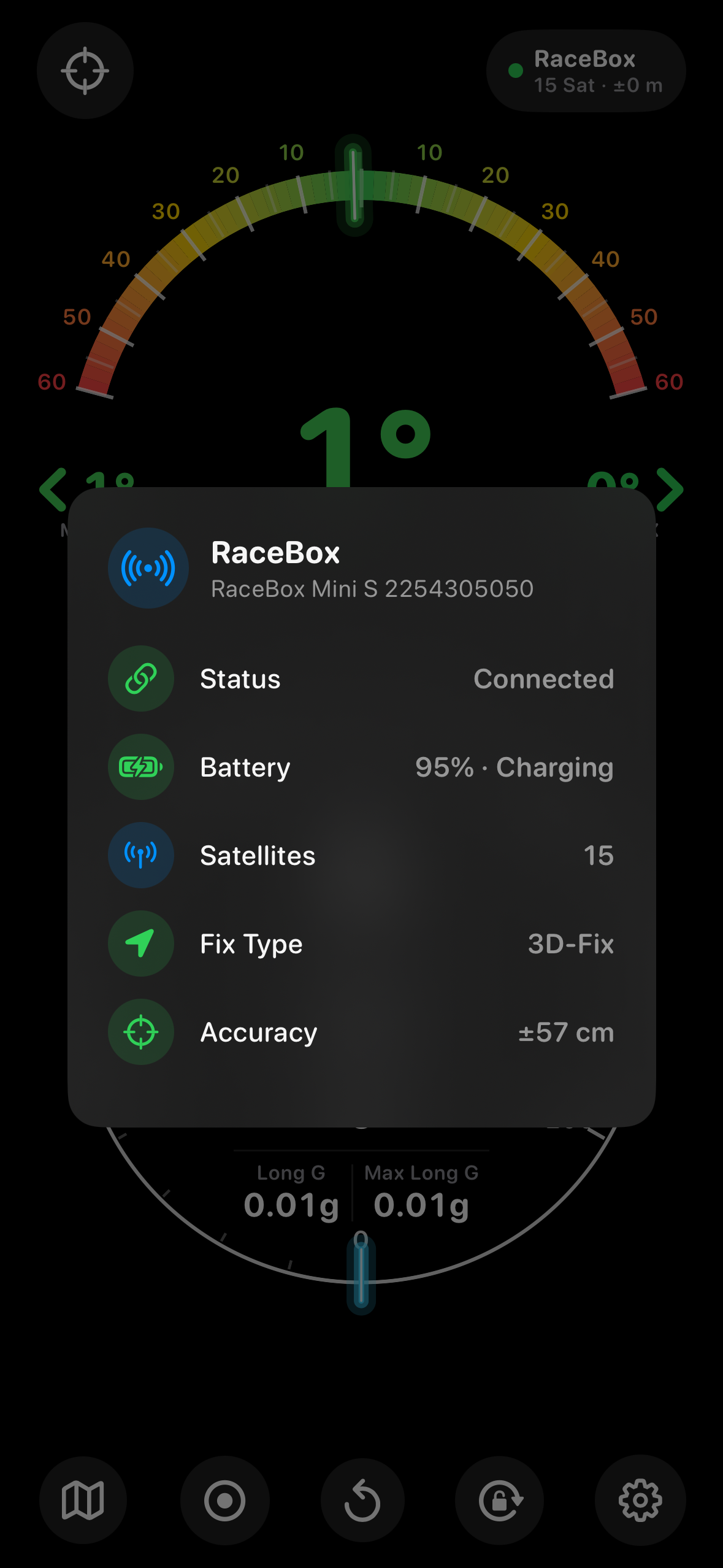
For anyone who finds the iPhone’s own sensors too coarse: Lean Angle is set to connect to the RaceBox Mini — an external instrument that measures position and motion at a completely different resolution.

RaceBox Mini: a small black measuring device with a red logo and a USB-C port
RaceBox Mini — 106 grams, connected to the iPhone over Bluetooth. Product photo: RaceBox.
25 Hz
Sample rate
25 positions per second instead of roughly one — every corner stays a corner instead of a straight line.
10 cm
Position accuracy
Instead of the several metres a phone GPS manages at best.
4
Satellite systems
GPS, GLONASS, Galileo and BeiDou at once, plus SBAS — in forests and between rock faces too.
1 kHz
Sensor sampling
A dedicated accelerometer at ±8 g and a gyroscope at ±320 °/s, a thousand times per second.

The iPhone measures lean through its motion sensors and speed through a GPS that reports roughly once per second. On country roads that is plenty. On track, twenty metres can pass between two samples — including the very point where your lean angle peaked.

The RaceBox Mini carries its own receiver for four satellite systems, plus a gyroscope and an accelerometer sampling a thousand times per second. It sends its readings over Bluetooth 5.2, runs for more than 20 hours and weighs 106 grams. The plan is to use its data in place of the iPhone’s sensors — the same display, the same recordings, just far finer resolution.

This feature is planned and not yet part of the app. There is no fixed date, and the scope may change. Lean Angle is an independent project with no affiliation to RaceBox; the specifications quoted come from the manufacturer.

Lean Angle terms of use: a note that the app is a reference instrument with no safety guarantee
Before you set off

Safety first, in plain words.

Before your first ride, Lean Angle spells out what the app is for — and what it is not: it is a reference instrument, not a coach. It shows what the sensors and GPS measure. Ride within your own limits and those of your machine. Do not let it tempt you into chasing ever greater lean angles. No number on a screen replaces skill and experience. Save the experiments for the track!

iPhone · iOS

Ready for the next corner?

Lean Angle is in final testing ahead of its App Store release. Check back soon.

Coming soon to the App Store